Compliance Checklists
 My20 ELD Activation
Activate your My20 ELD
You’ve already got the hardware. Now let’s get your account set up and your logs FMCSA-compliant. It only takes 10 minutes, start to finish.
Easy start. Choose your plan.
An active My20 ELD subscription is REQUIRED for your ELD to work. Your device alone will not record driving hours or maintain your logs. You must select a subscription plan before proceeding. An active subscription is required to complete device registration in Step 3 and begin using your ELD.
Konexial DriveLiFE APP
FREE APP DOWNLOAD
- Konexial My20 ELD App available for iOS and Android
- DriveLiFE Content Stream
- Points of Interest(POI) Mapping
- POI Ratings and Reviews
- App Available in Spanish
- Two-way & Broadcast Messaging
- US-based Customer Support
Konexial ELD Tower
ANNUAL SUBSCRIPTION
- Everything included in the Konexial App plus:
- FMCSA Compliant ELD logs
- Real-Time GPS Tracking
- Violation Alerts/RODS Visibility
- IFTA Reporting
- Fleet Management and Dashboard Reporting
- Easy to use HOS Exemption Statuses
Konexial ELD Fleet
ANNUAL SUBSCRIPTION
- Everything included in the Konexial Tower plus:
- Engine Diagnostics & Fault Codes
- Driver Behavior Reporting
- Fuel Tracking (MPG)
- Geo-fence Alerts
- API Key and 3rd Party Integrations
- Document Scanning & Retention
Step 2: Download My20 ELD App
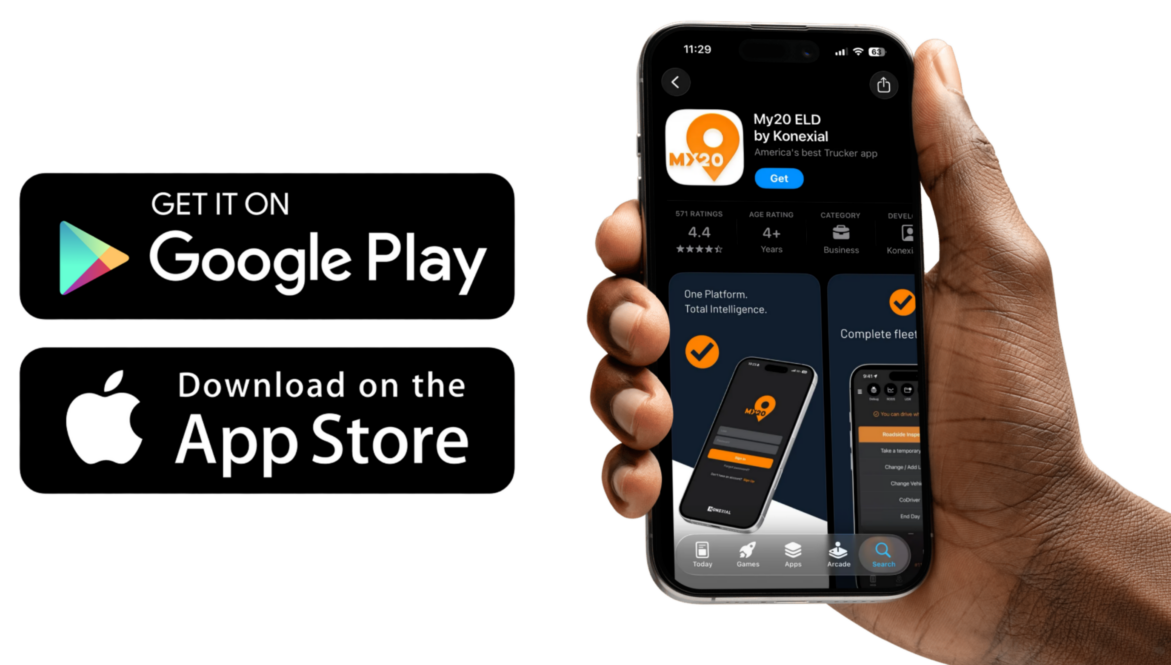
Search “My20 ELD” on the App Store or Google Play, or tap a button below. The app is free to download.
Step 3: Create your account
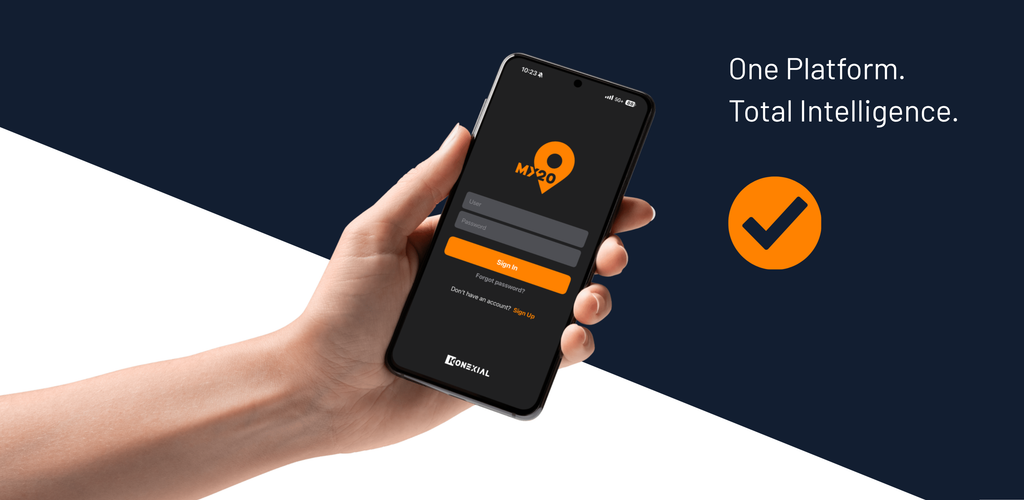
Once you’ve purchased the ELD subscription, you will be sent a link to create your account. When prompted for your device ID, use the serial number printed on the back of the My20 ELD unit itself – NOT the barcode on the outer box. Once your account profiles are created, you will be able to connect the ELD hardware to your My20 ELD app.
Step 4: Connect to your truck & pair via Bluetooth
The My20 ELD plugs into a standard 9-pin (J1939) diagnostic port. 6-pin (J1708) and OBD-II trucks need an adapter cable first. Once it’s plugged into the vehicle, pair your phone to the device over Bluetooth right in the app to start logging. Click the buttons for install video tutorials.
Your ELD is plugged in.
Now make it count.
Without an active subscription, your My20 ELD isn’t recording compliant logs. That leaves you exposed at a roadside inspection, where driving without a compliant ELD can mean fines and being placed out of service. Once your subscription is active, setup takes about 10 minutes, and you get:
- FMCSA-compliant logs from your very next shift
- Hours of Service alerts before you hit a violation
- Logs ready to show an officer at roadside inspections
- IFTA mileage reporting without the spreadsheets
- Digital DVIRs, right in the app
- Built-in exemption statuses: Personal Conveyance, Yard Moves, Short Haul, Agriculture, Oil Field, Split Sleeper Berth and Adverse Weather
- Works on iPhone and Android, with the app available in Spanish
- US-based support when you need a hand
Plug in. Log in. Stay compliant.
Troubleshooting Stuck? Start here.
Both plans keep you fully FMCSA-compliant. The difference is how far beyond compliance you want to go, and above all, whether you need to connect My20 to other software.
Tower has everything you need to run compliant and manage a small fleet:
- ELD and Hours of Service tracking
- IFTA reporting
- DVIR management
- Tower dashboard access and messaging to your drivers
- Exemption statuses: Personal Conveyance, Yard Moves, Short Haul, Agriculture, Oil Field, Split Sleeper Berth and Adverse Weather
Fleet includes everything in Tower, plus third-party integrations and an API key. With your API key, your ELD, GPS and Hours of Service data can flow straight into the software you already use, such as your TMS, dispatch, accounting, factoring or insurance platform. That means no exporting reports and no double entry. Fleet also adds:
- Engine diagnostics and fault codes
- Driver behavior reporting
- Fuel management (MPG)
- Dispatch to mobile
- Document workflow
To use My20 ELD, purchase the hardware and a license. Then, create administrator, driver, and vehicle profiles. Plug the ELD into the vehicle’s ECM port, download the My20 ELD app, log in, and the app will connect via Bluetooth to begin your workday.
On the top right of the home screen, My20 will show your ELD Status. “ELD connected” or “No ELD Connected.”
NOTE: If “No ELD connected”, make sure power is on to My20 ELD box (green light on) and tap to scan for your ELD hardware. If the problem persists, check to see if Bluetooth AND Location services on your mobile device are turned on, both are required to connect to the My20 ELD.
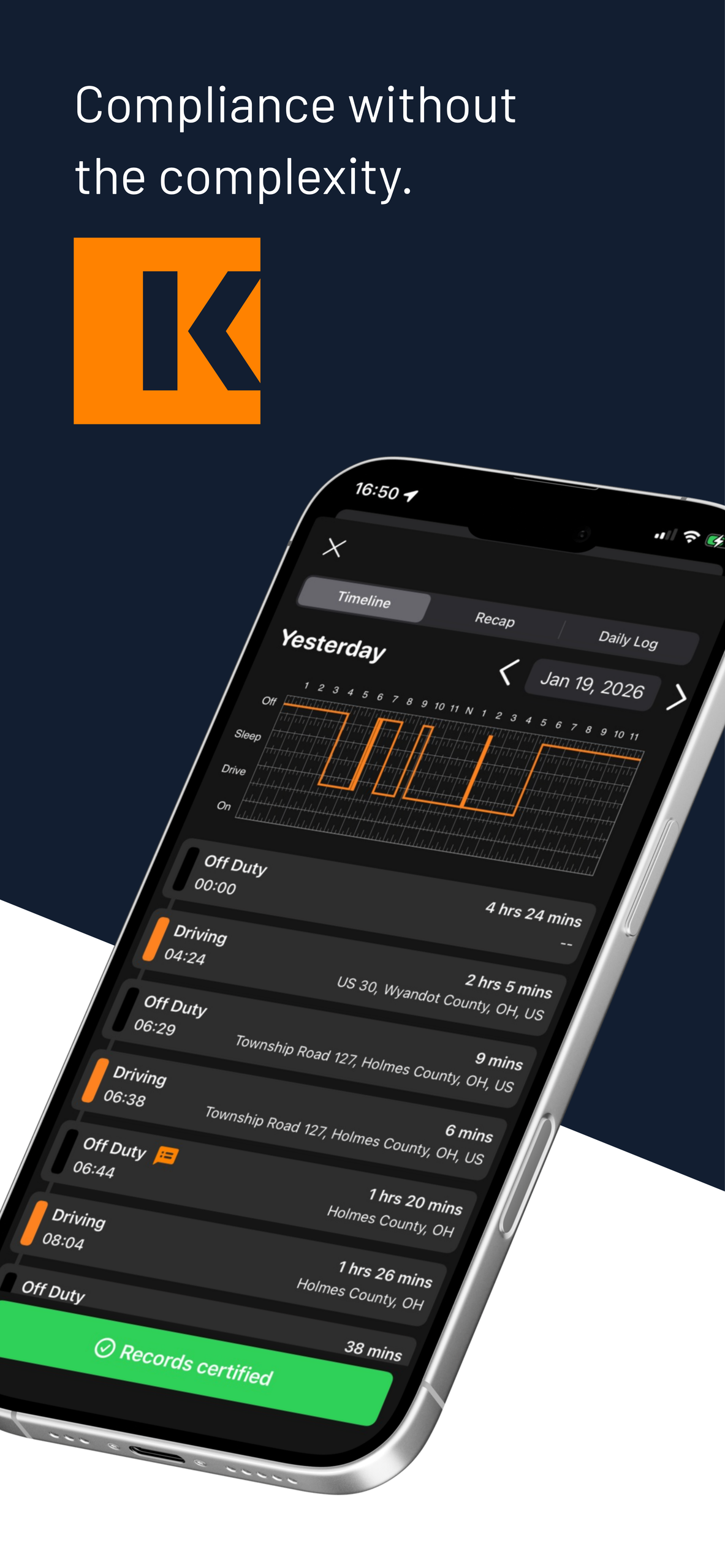
Drivers can manage duty status, DVIRs, and logs directly in the app, while administrators can monitor activity in real time through the Konexial platform. The system is FMCSA compliant out of the box and includes prompts to help prevent common violations.
The My20 ELD is simple to install in any vehicle. Locate the vehicle’s ECM port, plug the device into the port, wait for a blue light to display on the device to confirm power. Once the device has power, use a phone or tablet to connect via Bluetooth to the device.
Installation typically takes less than 5 minutes and does not require professional installation.
Yes! My20 ELD supports team and co-driving functionality. The Co-Drivers feature in the My20 Driver App supports team driving by allowing multiple drivers to log in, switch roles, and maintain compliant records, all from the same device. This helps fleets ensure smooth transitions, accurate logs, and compliance with hours of service (HOS) regulations.
Your duty cycle is the most on-duty hours you can work over a rolling period before you have to take time off. The two federal cycles for property-carrying drivers are:
- 60 hours in 7 days, if your company doesn’t run trucks every day of the week
- 70 hours in 8 days, if your company runs trucks every day
My20 uses the cycle you select to track your available hours and warn you before a violation. Not sure which one applies? Ask your carrier. Owner-operators pick the cycle that matches how their business runs. If you drive only within one state, your state may have its own cycle rules.
Your handle is your username. It’s the name you type to log in to the My20 ELD app or the Konexial dashboard. Every driver and admin has their own unique handle, and handles can’t be shared. Keep yours somewhere safe. If you forget it, contact support@konexial.com.
FMCSA rules require ELDs to keep driver accounts separate from administrative accounts, so you can’t use the same login for both.
- Driver account: used in the My20 ELD app to log duty status, complete DVIRs and certify your logs. Each driver gets one account, tied to their driver’s license.
- Admin account: used in the Konexial dashboard to set up your company, add drivers and vehicles, review logs and run reports like IFTA. When an admin suggests a log edit, the driver has to accept it before it takes effect.
Owner-operators: if you drive and also run your own back office, you need two logins connected to separate emails, one admin and one driver.
Per FMCSA guidelines, all drivers are required to have these 4 items in the vehicle while using ELD.
- My20 User Manual
- Instruction sheet for transferring HOS records to safety officials found
- Instruction sheet on reporting ELD malfunctions & recordkeeping procedures during ELD malfunctions. FMCSA malfunction recommendations found HERE
- A supply of paper tracking forms (grid graphs) for at least 8 days, in case of an ELD malfunction emergency.